
Download FLAC To MP3 – Free, Fast Audio Converter for Windows, macOS, Android & iOS
Overview
FLAC To MP3 is a lightweight yet powerful audio conversion tool that focuses on one core mission: turning lossless FLAC files into universally compatible MP3 files (and several other popular audio formats). Whether you’re a music enthusiast looking to free up space on a portable device, a podcaster who needs to compress raw recordings, or a casual user who simply wants a hassle‑free way to share music with friends, this software promises a fast, secure, and straightforward conversion experience. The free version offers basic conversion capabilities, while a paid license unlocks full‑length file processing and removes commercial‑use restrictions.
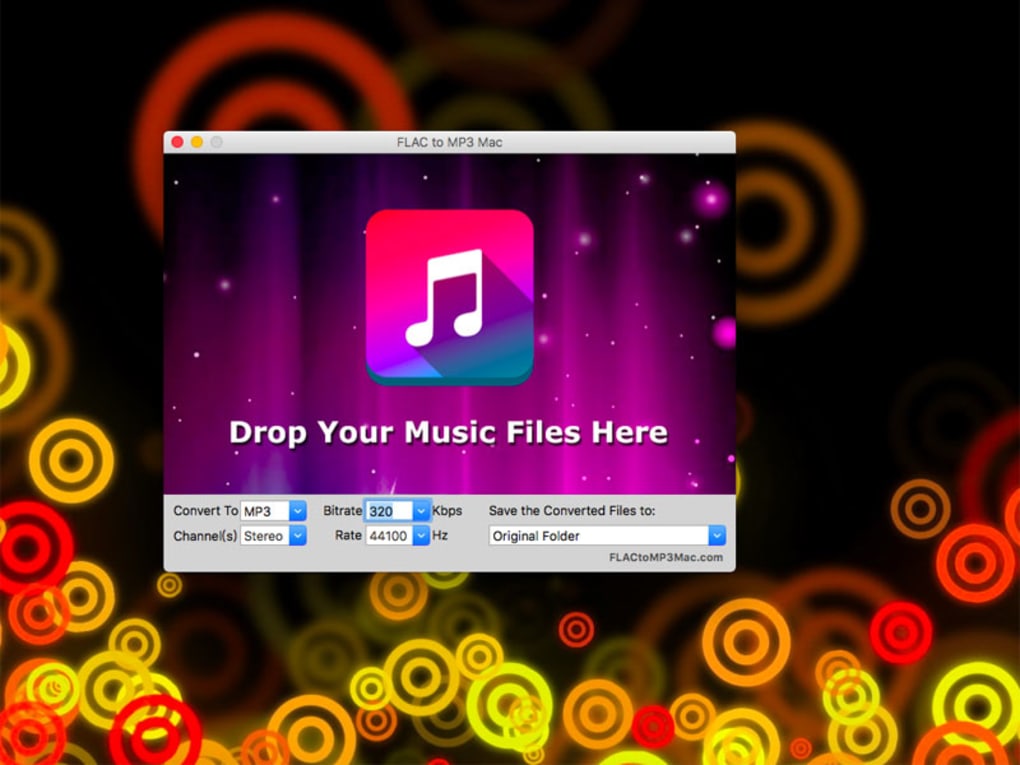
The interface is intentionally minimalist, featuring drag‑and‑drop support, batch processing, and automatic metadata preservation, which means your artist, album, and cover‑art information travel seamlessly from source to output. Although it does not bundle a full suite of audio editing tools, FLAC To MP3 shines by delivering exactly what it promises—reliable, high‑quality conversion without unnecessary bloat. The program also supports video‑to‑audio extraction, allowing you to rip MP3 tracks from popular video formats, a handy feature for those who curate personal soundtracks from movies or online videos.
Overall, FLAC To MP3 is an ideal solution for anyone who values speed, simplicity, and the confidence that their audio files will retain essential tag information after conversion.
Key Features
- Multiple Output Formats: Convert FLAC to MP3, WMA, M4A, AAC, OGG, WAV, and more, giving you flexibility across devices.
- Drag‑and‑Drop Interface: Quickly add files or whole folders by dragging them into the main window, perfect for batch conversions.
- Metadata Preservation: All ID3 tags, album art, and track information are copied automatically to the new file.
- Video‑to‑Audio Extraction: Rip audio from popular video containers (MP4, AVI, MKV) directly into MP3 without extra software.
- Adjustable Bitrate & Sample Rate: Choose constant or variable bitrate, set sample rates, and customize channel modes to match your quality preferences.
- Batch Processing & Queue Management: Queue dozens of files, reorder them, and watch a progress bar that updates in real time.
- Secure, Offline Conversion: All processing happens locally on your machine, ensuring privacy and eliminating the need for an internet connection.
- Free Version Limitations Clearly Stated: The free edition limits full‑length conversions, making it ideal for short samples while encouraging upgrade for professional use.
The feature set is deliberately focused, avoiding feature creep that can slow down conversion speed. By concentrating on core audio and video extraction tasks, FLAC To MP3 delivers a responsive experience even on modest hardware. Users appreciate the ability to set custom output parameters without wading through complex menus, and the automatic handling of tags eliminates the tedious manual editing that many other converters require. For those who need a quick, reliable way to compress lossless audio for mobile playback, these features combine to make FLAC To MP3 a top‑choice tool.
Installation & Usage Instructions
Getting started with FLAC To MP3 is intentionally straightforward. Follow these steps to download, install, and begin converting your audio files:
- Download the Installer: Visit the official website and click the Download for Windows/macOS/Android/iOS button that matches your operating system. The file size is under 20 MB, ensuring a quick download even on slower connections.
- Run the Installer: On Windows, double‑click the
.exefile; on macOS, open the.dmgand drag the app to your Applications folder. Mobile versions are installed through the Google Play Store or Apple App Store. - Launch the Application: After installation, open FLAC To MP3. The first launch may prompt you to allow file access; grant permission so the app can read and write to your storage.
- Add Files: Drag your FLAC files directly onto the main window, or use the Add Files button to browse your folders. You can also drop an entire folder to queue multiple tracks at once.
- Select Output Settings: Choose MP3 as the target format from the dropdown menu. Adjust bitrate (e.g., 192 kbps, 256 kbps, 320 kbps) and sample rate if desired. For video files, select the video source and set MP3 as the output.
- Start Conversion: Click the Convert button. A progress bar will display the status of each file. The free version will alert you if a file exceeds the length limit, prompting an upgrade if needed.
- Locate Converted Files: Once the process finishes, the output folder (by default, a subfolder named
Converted) opens automatically, showing your new MP3 files ready for playback.
For power users, the application includes a Preferences panel where you can set a default output directory, enable automatic file naming based on tags, and configure batch‑conversion limits. The mobile app mirrors this workflow with touch‑friendly buttons, allowing you to convert on‑the‑go directly from your phone’s music library. Overall, the installation and usage process is designed to be as frictionless as possible, letting you focus on listening rather than troubleshooting.
Compatibility, Pros & Cons
Supported Platforms
FLAC To MP3 is built to run on the most common operating systems:
- Windows: Windows 10, 11 (64‑bit)
- macOS: macOS 10.15 Catalina and later
- Android: Android 8.0 Oreo and newer
- iOS: iOS 13 and later (iPhone & iPad)
The cross‑platform nature ensures that whether you’re at a desktop workstation or using a mobile device, you can rely on the same conversion engine and feature set. System requirements are modest: a dual‑core CPU, 2 GB RAM, and at least 50 MB of free disk space for the program itself. Because conversions happen locally, no additional internet bandwidth is consumed, which is especially beneficial for users on limited or metered connections.
Pros
- Fast conversion speed, even for large FLAC libraries.
- Intuitive drag‑and‑drop interface reduces learning curve.
- Preserves all metadata, eliminating manual tag editing.
- Supports a wide range of output formats beyond MP3.
- Offline processing protects privacy and works without internet.
- Batch queue management saves time for bulk conversions.
Cons
- Free version restricts full‑length file conversion.
- No built‑in audio editing (cut, fade, normalize).
- License required for commercial usage.
- Limited advanced codec options compared to professional suites.
Despite the limitations of the free tier, the overall value proposition remains strong for personal use. Users who need unrestricted conversions or commercial rights can purchase a modest license, unlocking unlimited length, priority support, and occasional feature updates.
Frequently Asked Questions
Can FLAC To MP3 convert whole albums in one go?
Yes. By dragging an entire folder containing your album’s FLAC files into the app, FLAC To MP3 will queue each track and convert them sequentially while preserving album‑level metadata such as cover art.
Is there a limit to the number of files I can convert at once?
The free version allows up to 10 files per batch. The paid license removes this restriction, enabling unlimited batch conversions.
Will the conversion process degrade audio quality?
When you select a high bitrate (e.g., 320 kbps), the resulting MP3 will retain most of the audible quality of the original FLAC. However, any lossy conversion will inevitably discard some data compared to the lossless source.
Can I extract audio from a video file?
Yes. FLAC To MP3 supports video formats such as MP4, AVI, and MKV. Simply add the video file, choose MP3 as the output, and the app will extract the audio track.
Is the software safe from malware and adware?
The installer is digitally signed and distributed from the official website. No adware, spyware, or bundled third‑party programs are included.
Final Verdict & Call to Action
FLAC To MP3 delivers exactly what its name promises: a fast, reliable, and user‑friendly converter that turns lossless audio into portable MP3 files while preserving all essential metadata. Its clean interface, drag‑and‑drop batch support, and offline processing make it a practical choice for everyday users and music collectors alike. While the free version imposes reasonable limits, upgrading to the paid license unlocks full‑length conversions and commercial usage rights, offering excellent value for the price. If you’re looking for a secure, no‑bloat solution to shrink your FLAC library for smartphones, tablets, or any MP3‑only device, this tool is ready to download and use today.
Ready to streamline your music collection? Click here to download FLAC To MP3 for free and experience seamless conversion in minutes.